Installation
CSS — Installation and Required Information
To register a CSS service, we need some information from you. It comes down to 4 simple steps you need to complete — once we have everything, we handle the entire process from A to Z and deliver a fully operational service along with all the necessary information on how to use it.
Step 1
Every Comparison Shopping Service (CSS) requires a website where it will display its products. The domain/subdomain must relate to the CSS name you plan to use — these two cannot be completely unrelated.
Register a domain or subdomain for the CSS and point it to our IP address:
141.95.93.141
It is important that the redirect is set up for both "A" records — both the www and non-www versions of the domain.
⚠️ If you are using any address masking services — e.g., Cloudflare — please disable them during the CSS installation process. You can re-enable them afterwards. It is also worth setting the TTL value to the lowest possible — this will speed up how quickly the changes take effect.
Step 2
The next thing we need from you is an email address in the domain mentioned above. Google requires that the email address used for communication with them comes from the same root domain as the company or (ideally) the comparison shopping service.
Once you have the email address, please create a Google account using it. https://accounts.google.com/SignUp
⚠️ When creating the account, please use the option "Use my current email address instead" rather than creating a new Gmail account.
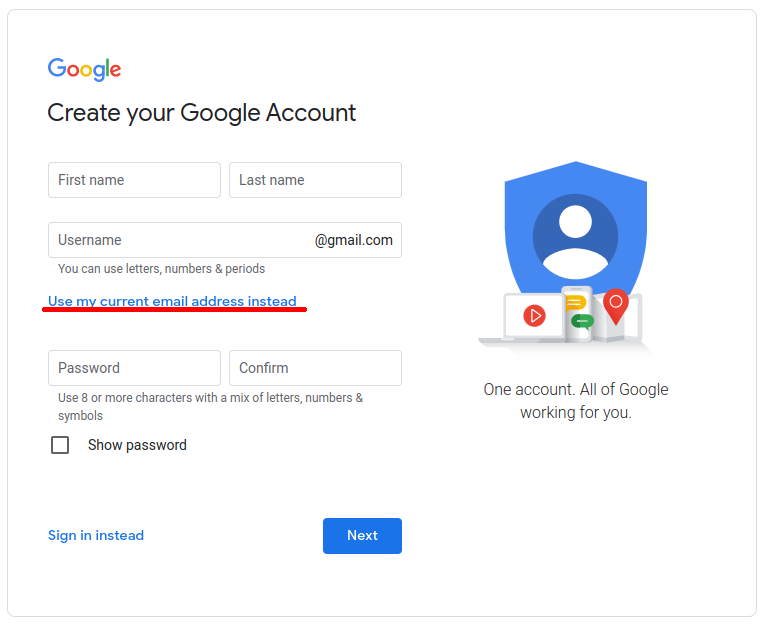
If possible, do not enable two-factor authentication during the CSS installation. You can add it after the setup is complete.
If enabling two-factor authentication is necessary, we encourage you to temporarily add our phone number +48 724 277 703 for the duration of the installation (to do so, contact us at [email protected] or via the chat in the Sembot panel). Once the installation is complete, we will change the verification phone number to one of your choosing.
Step 3
Please create an account on the Sembot platform — https://app.sembot.io/auth/register — and verify your account via the email you receive.
⚠️ You can use a different email address for registration than the one used for the CSS setup. We recommend using an email address you use daily at work and that you are reachable at if we need to contact you.
Creating an account in the app is free. Under the free plan, you can add projects (product feeds/files from your store platform) so that products appear on the CSS website — this is the only way to add products to the comparison shopping site. You can also add projects to our CSS to increase the number of places where your products are displayed, completely free of charge.
⚠️ Only registration is required for CSS installation, but there is nothing stopping you from starting to use the tool right away.
Within paid plans, the app also supports product feed optimization, generating product campaigns, and creating ready-to-use product files for multiple platforms. We encourage you to give it a try — after purchasing a plan, a free 14-day trial period applies.
More information about the Sembot app can be found in the other sections of this site. You are also welcome to contact us at [email protected] or via the chat.
Step 4
Make sure the redirect is working — you can use this tool: https://dnschecker.org/#A/ Enter both variants (with and without www) and check that it resolves to our IP address.
Send the following information to [email protected]:
- Confirmation that the DNS records are pointing to 141.95.93.141
- Login credentials for the email mailbox (username and password) — and if it is not a Gmail account, also the link to the login page
- Login credentials for the Google account
- Contact details
- Logo
- CSS name (must be reflected in the domain)
- Sembot account name or email
The above information is required for CSS installation.
⚠️ There is no need to worry about confidentiality — all accounts (email, Google) created for the CSS installation must be new and previously unused, so there is no risk of data leakage. If needed, we can sign an NDA.
Additionally, if you wish, you may also send:
- Other graphics to be included on the CSS website
- Style preferences: colors, fonts
- Tracking tag codes (GTM, GA, etc.)
- Privacy policy / terms of service
- Any other materials you would like included on your CSS
That's it — we'll take care of the rest!