Disconnecting a GMC Account from a CSS Provider
The following guide describes the procedure for switching the CSS (Comparison Shopping Service) provider from an external partner to the native Google Shopping service. This process takes place entirely within the Google tools ecosystem (CSS Center and Merchant Center) without requiring technical support.
1. Access Management (Technical Considerations)
Switching the CSS provider often involves changes to account access. Pay attention to the scenarios below to avoid losing access to your data:
- Standalone accounts: The transfer does not affect user permissions.
- Sub-accounts in an MCA structure: After disconnection, top-level administrators will lose access, unless there are other users with direct administrator access to the sub-account.
- Permission inheritance: If no individual administrators are assigned directly to the sub-account, all users who held administrator status in the parent account (MCA) will automatically receive administrator access to the sub-account after it is disconnected from the MCA.
⚠️ Important note: You cannot add an email address as an administrator directly to a sub-account if that email address is already listed as an administrator in the parent account. Make sure that after the migration you will be able to log in with credentials that currently have permissions in your existing MCA.
2. Migration Procedure
Initiating in CSS Center
The process must be started in the CSS management panel by the current provider or a user with access to CSS Center.
- Log in to CSS Center.
- Navigate to your CSS domain if you are not already on it.
- Go to the Merchants section.
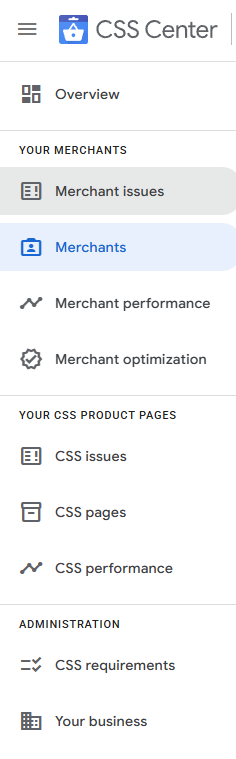
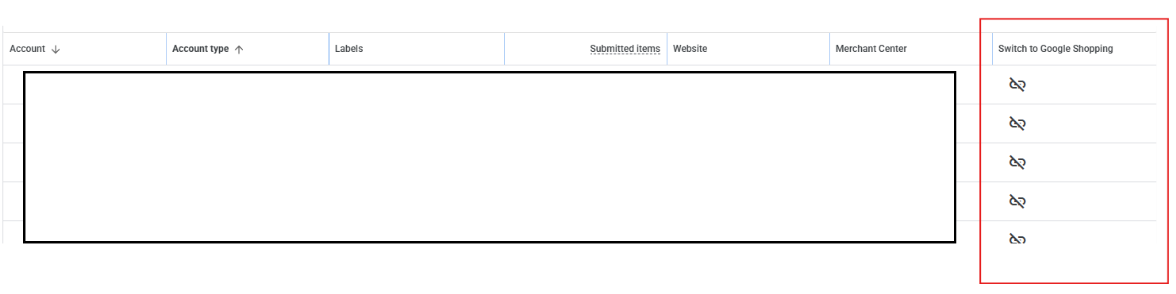
- Locate the GMC account by its unique identifier (ID). If the account is a sub-account, click the account list under the multi-account ID and navigate to the sub-account list.
- Use the transfer function — the icon in the Switch to Google Shopping column — to send a provider change request.
Accepting in Merchant Center
This is the key step where the store owner must confirm the transfer.
- Log in to the target Merchant Center account.
- Click the tools icon (gear ⚙️) → Account settings.
- Select the Comparison Shopping Services (CSS) tab.
- Next to the pending request from Google Shopping, click Approve.
3. Transition Period and Finalization
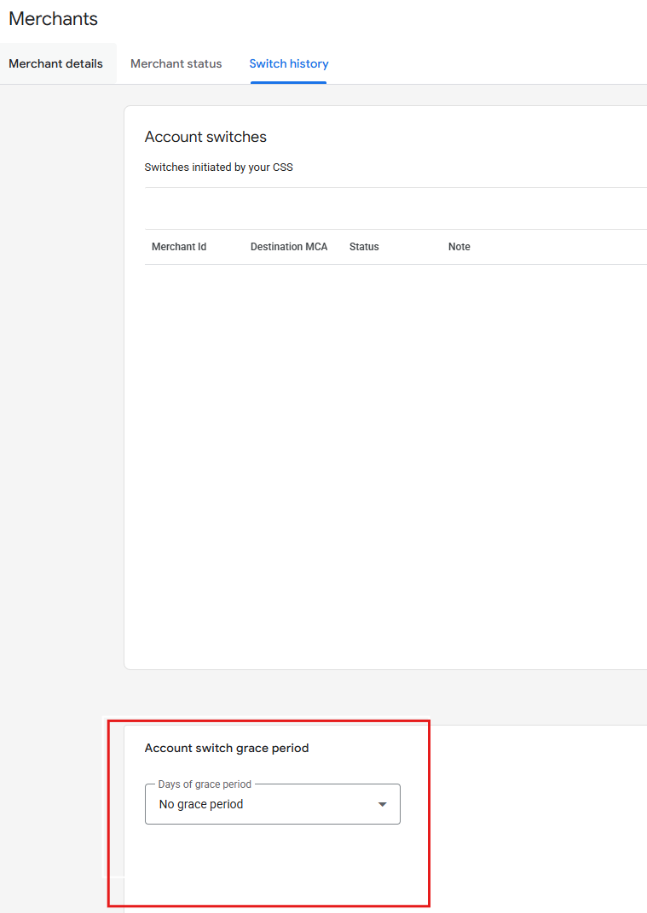
After the request is approved, the system initiates a Grace Period, if one is configured. Whether a grace period applies and how long it lasts depends on the settings in the Merchants section → Switch History: Account Grace Period.
More information: https://support.google.com/css-center/answer/11144098?hl=pl