Linking a GMC Account to CSS (WL/Keyword CSS Service)
To fully activate the CSS service for a merchant, simply creating a comparison shopping site is not enough. Two key steps are required: linking the Google Merchant Center account to CSS and uploading products to Sembot and adding them to the comparison shopping site. Only after combining these elements does the service work correctly — a user who clicks the "By: CSS_NAME" label in an ad can then actually view the store's offer on your comparison shopping site.
Step 1. Adding Products to the Comparison Shopping Site
The first step is to create a project in Sembot, add product data to it, and submit it to the comparison shopping site. This is very important because the products of every GMC account operating under CSS must be visible on the comparison shopping site.
Create a project and add product data.
Remember! The available language versions of comparison shopping sites depend on the language in which you create the project. For example, for a Polish store, select Polish when creating the project to gain access to Polish comparison shopping sites.
Go to the "Source Settings" tab.
Go to the "Add Products to Comparison Sites" tab visible at the very top.
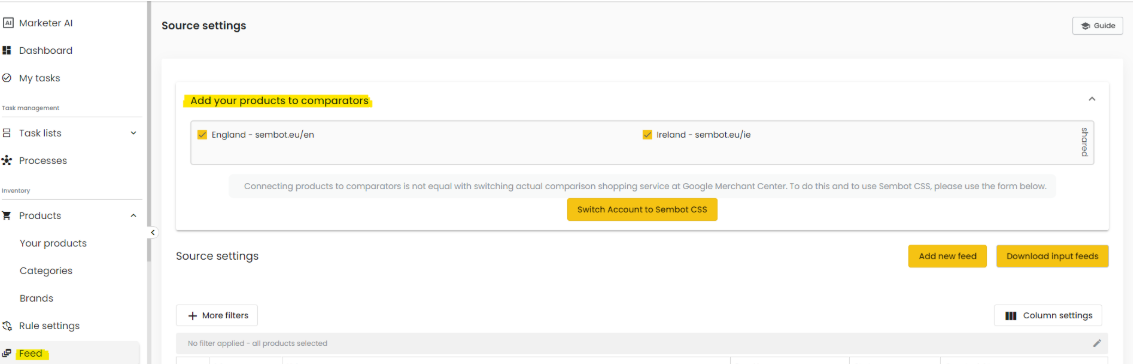
Remember! If you are using the Keyword/WL CSS service, you will also find your own comparison shopping site here.
Select the comparison shopping site. Check the box next to the selected comparison site. Products will be visible on the site within 24 hours.
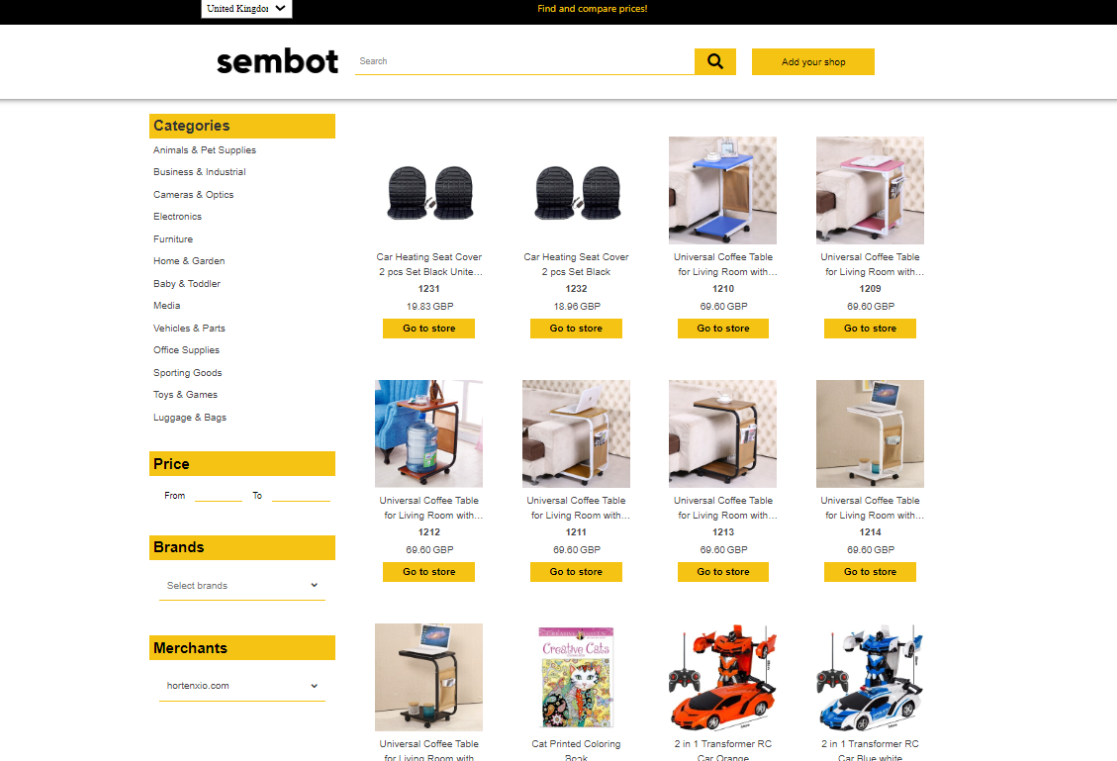
Go to the comparison shopping site you added products to and find your store in the "Sellers" section.
Step 2. Linking the GMC Account to CSS
Once the comparison site is set up and products have been added, you can proceed to link the Google Merchant Center account to CSS.
Method 1 — Automatic Migration (Recommended for Existing and Active GMC Accounts)
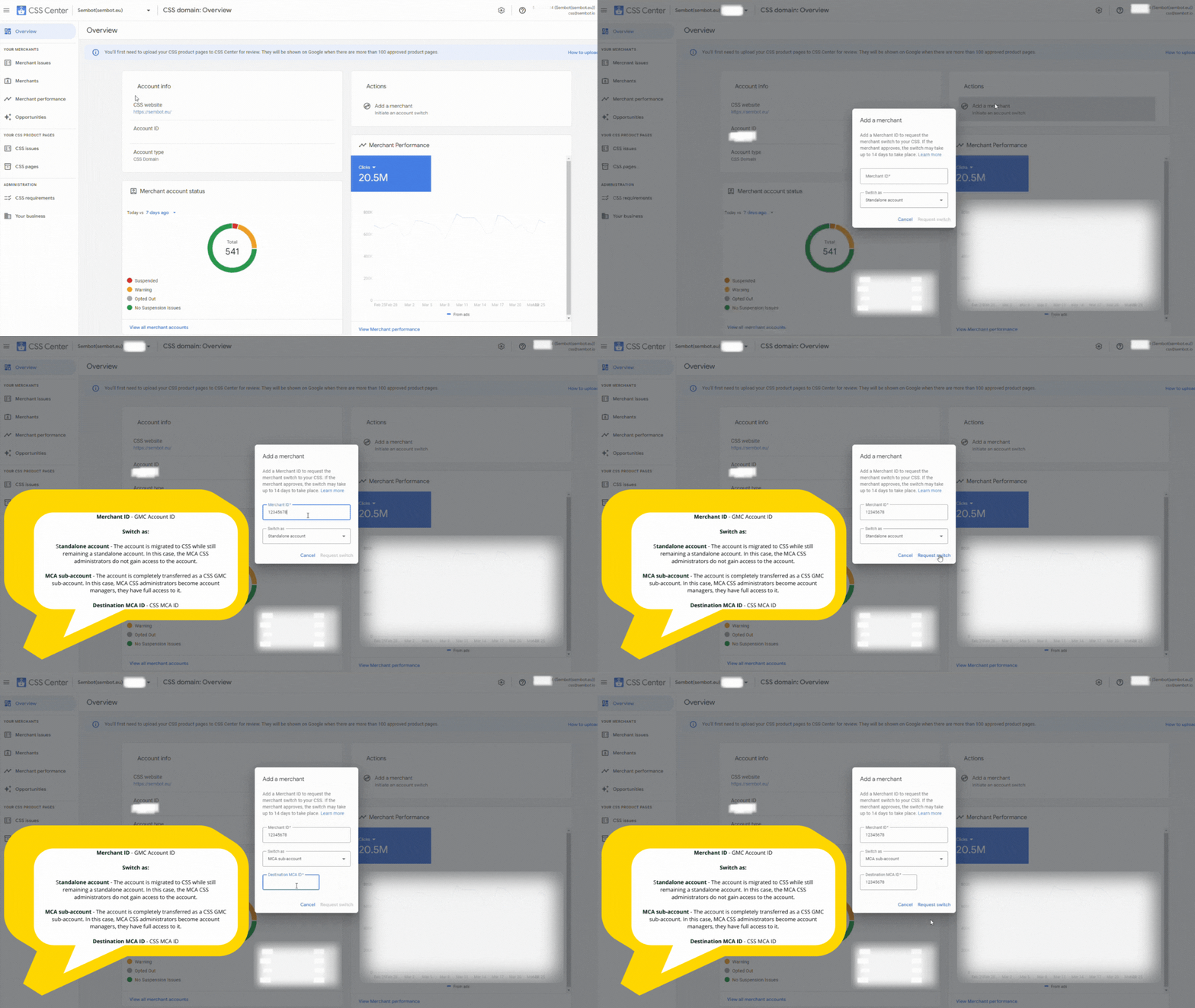
Go to the "Overview" section of the given domain in the CSS Center panel. Shortcut: https://g.co/csscenter
Remember! The link only works for Google accounts associated with CSS Center.
Click "Add merchant".
Enter the GMC account ID you want to link.
Select the type of transfer (details below). If you chose the full transfer option (MCA sub-account), also enter your CSS multi-account ID.
After filling in the fields, the "Request transfer" button will appear grayed out — however, clicking it will still submit the request.
Once the transfer process begins, the administrator of the GMC account being transferred must accept or reject the CSS change invitation. Log in to the GMC account, click the notification icon (bell), and find the CSS change request. After acceptance, a grace period for the previous CSS may still apply*. The final transfer will occur within 14 days of acceptance at the latest.
To view the status of ongoing transfer processes: left menu → "Merchants" → "Transfer History". You can also set the grace period for your CSS there.
*By default, the grace period for leaving a CSS is 14 days, but you can change it within a range of 0 to 14 days. For Google Shopping, this period is set to 0 days, so the transfer usually occurs within a few minutes of accepting the invitation. During the grace period, the GMC admin can change their mind and cancel the CSS change.
Types of Transfers in Automatic Migration
Sub-account on MCA: The account is fully transferred under the CSS multi-account and continues to operate as its sub-account. People managing the CSS MCA account gain full access to this GMC account. This solution works particularly well when the same team manages both the CSS account and the clients' GMC accounts.
Standalone account: The account is assigned to CSS but continues to operate as an independent account. CSS MCA administrators do not gain access to it. You manage such an account exclusively from the CSS Center panel — it will not be visible in the sub-account list in the CSS MCA panel. This solution works when a merchant wants to use your CSS but does not want to share access to their GMC account.
Remember! The advantage of the automatic method is that the GMC account is transferred to CSS along with all ongoing campaigns and their full history. There are no interruptions to the GMC account's operations.
Method 2 — Manually Creating a Sub-account on the CSS Multi-account
If a merchant already has an active GMC account and is using it, creating a new account is usually not a good solution — such a sub-account will in practice be a new GMC account with no history, no previous data, and no established ad rank.
This option is best suited for situations where you are starting to work with a new merchant who has not previously had their own GMC account.
Adding a New Account in CSS MCA
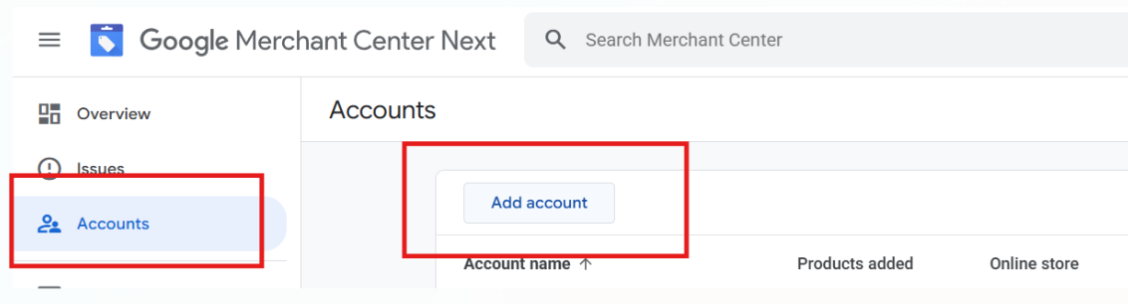
Log in to your CSS MCA, go to the Accounts tab, click Add account in the top right corner, and fill in the required details. After clicking Add, the account will appear in the account structure.
Duplicating Campaigns
If you want to use existing campaigns, you must use the desktop version of Google Ads Editor — the web interface does not allow changing the merchant ID.
- Go to the editor and duplicate the currently existing campaigns.
- Change the merchant ID of the duplicated campaigns to the new GMC sub-account ID.
Remember! Google's algorithm needs to relearn — the campaigns are new in its engine, so it may take a few days for them to ramp up. This is the only option when you do not want to disconnect the account from another CSS or when you want to use more than one CSS simultaneously.