Free Listings Not Working
The "Free Listings" Program
Sometimes, after switching (and occasionally even before) an account to a CSS other than Google, products stop appearing under "Free Listings". This is also accompanied by the message "No comparison shopping service selected for this country".
Unfortunately, when using a CSS other than Google, we do not have access to the "Comparison Shopping Services" menu.

To have this menu and be able to manage your CSS settings, you need to complete a few steps.
⚠️ If you already have a separate GMC account for this website (store) under Google Shopping, skip directly to Step 3.
Step 1. Create a New GMC Account Under Google Shopping
To complete this step, you need an account that is not linked to any other Merchant Center. If you don't have one, you can create a new Gmail account. Then create a new Merchant Center account — you can also add your other accounts as administrators.
It is not necessary to add products to this "dummy" account. Its purpose is management only.
Step 2. Verify the Domain
Settings → Business Information → Website
You will most likely receive a message stating that the current website is already in use by another account.
Do not worry — nothing will happen to your current main account (even if it is under a CSS other than Google), and the domain will not be detached.
Step 3. Activate "Free Listings" for Your CSS
Go to the gear icon, then — depending on your GMC account version — select Comparison Shopping Services or go to the General → Comparison Shopping Services tab.
Here you will find all CSS providers that are active for the domain where your store is located. Find your CSS on the list and activate Free Listings (three dots on the right) for the CSS through which you want them to be displayed.
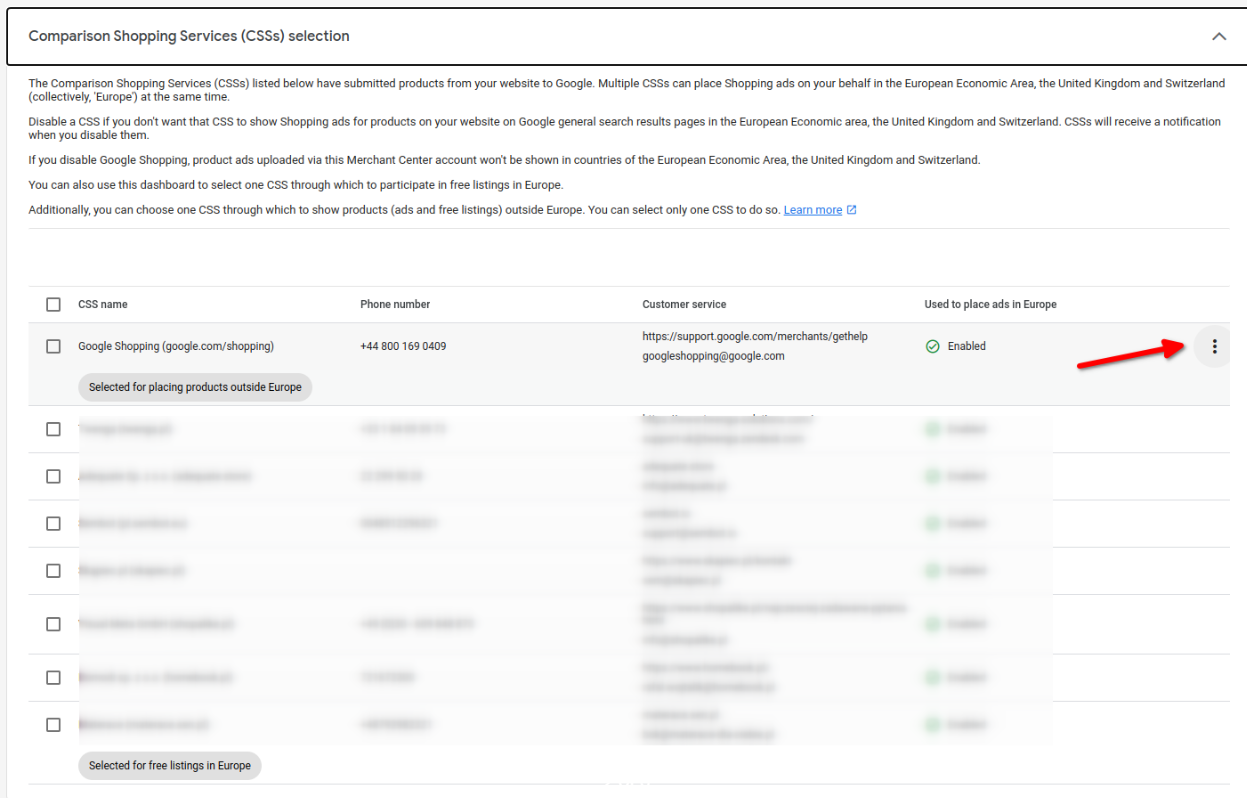
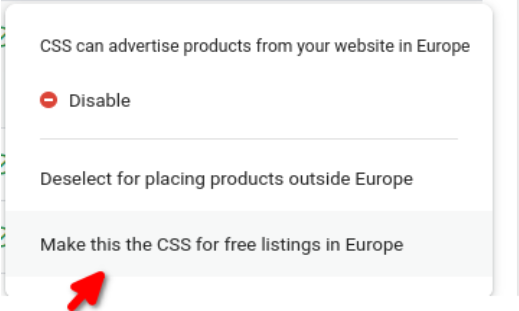
⚠️ REMEMBER! Only one CSS can have the free listings option enabled. If free listings are activated in multiple comparison shopping services, the user should deactivate all others.
Products should start being restored systematically shortly after.
For Google Merchant Center Next accounts, the CSS management menu will appear the day after the account is created.